Preamble/Intro
This guide is made to help players who have a problem with modded Minecraft
by providing explanations for probably causes of common kinds of problems,
and linking to other tools and websites where appropriate.
To use it, first navigate to the section relevant to you.
You can do this by clicking the buttons that match your problem,
using your browsers "search in page" feature, or by some combination of those two.
If you have questions or improvement ideas about this guide,
please create an issue or make a pull request on the repository where this file is hosted: https://github.com/McModknower/McModknower.github.io/.
Some quick links for people who roughly know what they need:
Crash Database,
Usual Suspects
So you have a lag problem
TPS vs. FPS Problems
To be able to properly diagnose your problem, you should be able to differentiate between server/TPS lag on the one hand and client/FPS lag on the other.
In addition to these descriptions here, you can also use your F3 screen (see next subsection) to figure out what kind of lag you have (if you can open it).
If you have only Server/TPS lag, the mobs and machines on the server are slower than normal.
If you are riding a minecart/horse/pig/whatever you might not be able to dismount, or it might take some more time.
Client/FPS lag means your screen is stuttering, you get noticeably less frames.
Sometimes people also call it a slideshow, especially if you get only 1-2 frames per second or less.
Using your F3 screen & Task manager
Your F3 screen shows some values that are interesting for debugging lag problems:
The FPS: if this is below 30, you have Client/FPS lag.
The TPS and MSPT: if TPS is below 20, or if MSPT is above 50 you have Server/TPS lag.
The Memory/RAM allocation and usage:
If the used memory is close to 100%, you should allocate more ram to Minecraft or have less stuff.
Your Task manager is also helpful.
If your task manager shows that your system ram is nearly fully used,
you should allocate LESS ram to Minecraft or close some programs you don't need.
If your task manager shows that your system cpu is nearly fully used,
you can either continue following this guide to find lag problems inside Minecraft, or close some cpu using programs you don't need.
laggy datapacks
First, remove known sources of lag:
Any datapack (or datapack packaged as mod) that checks entity nbt, for example to provide dynamic light.
Datapacks i know that do this: dynamiclight, enchantments_plus, origins_plus_plus, incendium.
(Note: lambdynlights is a client-side mod that provides dynamic lighting, and does not fall under this rule)
GPU heavy visual mods
Some visually heavy mods can cause FPS problems if used too much.
Any shader or lod mod falls under this, namely iris, distant horizons, voxy, and bobby.
Making a spark report
If you still experience lag after doing the steps above, its time to make a
spark profiler report.
After installing the mod, you can use
/spark profiler start --timeout 50 to start a profiler that records stats about the cpu usage of the server thread for 50 seconds.
Since it profiles the server thread, it is useful for tps problems
Making and interpreting a thread dump
If your game froze, and you have no other leads, a thread dump is the most viable option to get more info.
It dumps what the code is currently doing, so if it is stuck on one specific thing, it will be listed inside here.
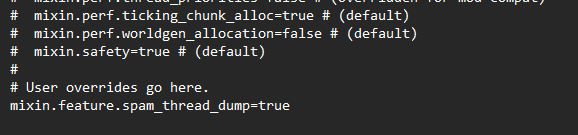
If you have modernfix installed, you can enable its spamming thread dump feature by adding a new line with mixin.feature.spam_thread_dump=true (no # anywhere) to the end of the modernfix-mixins.properties config file. This makes thread dumps in regular intervals into the latest.log.
Do the config changes, make sure to save your config, then restart your Minecraft, trigger the issue again, wait for 2-3 minutes so the problem gets dumped.
The end of the config should look like the following:
If that modernfix config option is not working for you (no modernfix in your pack, modernfix conflicting with some other mod, ...), create one using one of the methods described on https://www.baeldung.com/java-thread-dump.
Then look into the file and search for the stack traces following "Server thread" and "Render thread".
Sometimes when you loaded into a world, but something went wrong during crashing, "Server thread" is no longer there and you need to look for the last time Server thread appeared normally in the log.
Maybe there is some mod mentioned there, but reading them is always advisable.
If they contain something about .getChunk, this indicates they are currently getting/loading/generating a chunk.
In that case looking into the worker threads "Worker-Main- is also a good idea.